When you’re managing thousands of files across dozens projects, brands or clients, staying organized becomes a critical part of creative workflows. ReviewStudio has multiple features designed to help you keep files, Reviews, and Projects organized.
Here are a few tips and pointers to help you stay on top of your work from kickoff to delivered – and beyond.
Choose How to Organize Your Projects
In ReviewStudio, you will organize files under a three-level hierarchy. Files will be uploaded to Reviews. Reviews are attached to particular Projects. And then finally, Projects are then grouped by a Client, Brand, or another label, depending on your workflow needs.
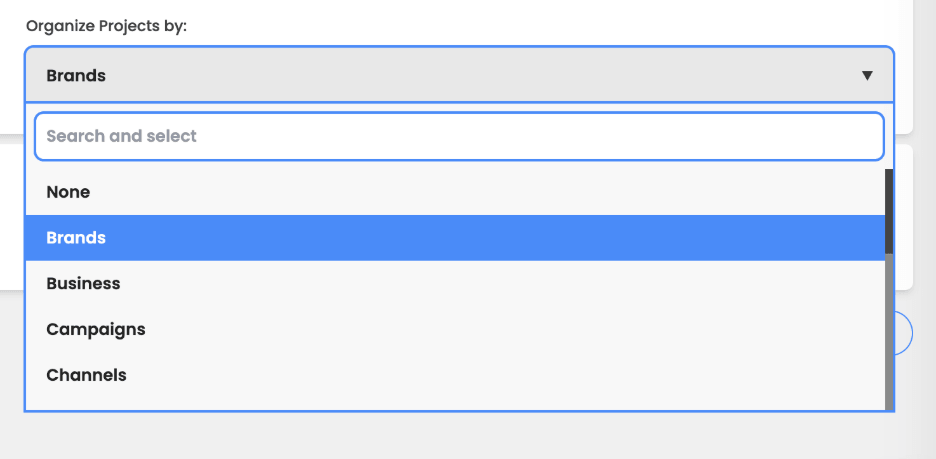
By default, Projects are categorized by “Client”. This is most applicable to agencies and teams working with multiple clients simultaneously. If this categorization doesn’t fit your team’s needs, you can choose which category to organize Projects by. From the admin Settings > Configuration, you can choose an alternative category type from the drop-down selections, which includes options like Brands, Business, Campaigns, Productions, and more.
For example, you might be working on Acme Cola (Brand) > Fall Campaign (Project) > OOH Activation Creative (Review – which will contain any number of different files and file types).
You can explore more about default account settings and managing Clients and managing Projects.
Create a Team
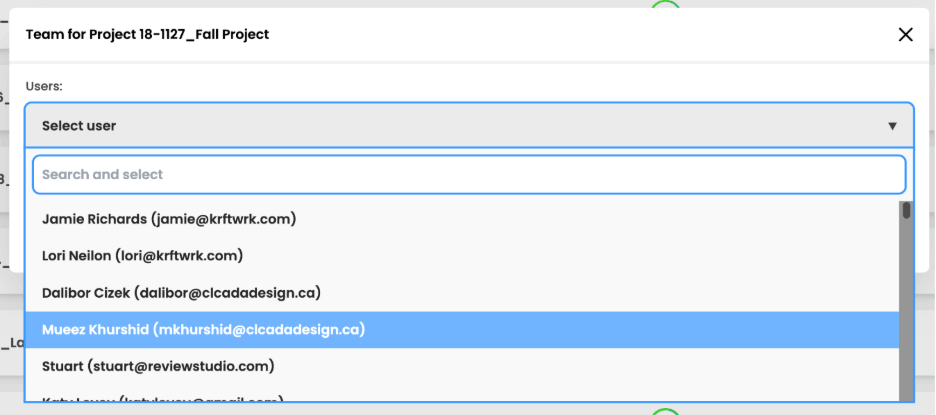
If the same users need access to a particular Project or Client (or Brand), there’s a shortcut to adding and excluding collaborators or reviewers. You can designate who can access a Client or Project from the Client or Project settings. This way, each time a Review is created under that Client or Project, users will be automatically added.
Add Labels to Reviews
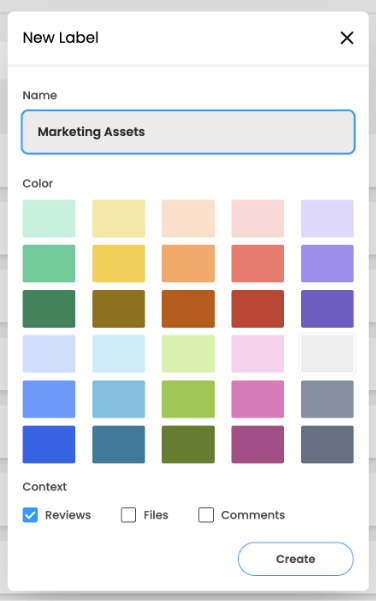
Review Labels help keep Reviews organized by making it easy to categorize and identify Reviews based on the status, type, priority, or any other criteria. Setting up and adding color-coded labels to your Reviews lets everyone on the team quickly see what needs attention, track progress, and filter Reviews efficiently.
Managing Reviews Once They’re Approved
Whether the Review was approved on V1 or it took a few rounds, getting that final stamp of approval always feels great. But what to do with the Review afterwards?
If you no longer wish for anyone to be able to add feedback or comments to the files in the Review, you can lock the Review as a whole or lock individual files. This prevents users from adding additional annotations or comments. If you want to take it a step further, you can make a Review inactive so users can’t access it. Both of these can be set as defaults or at the individual Review level.
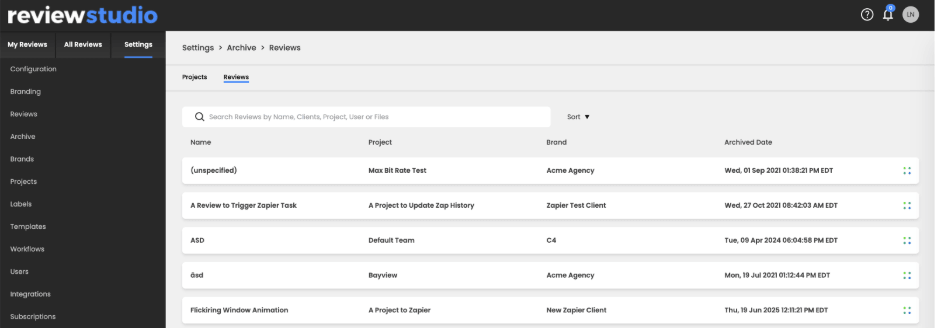
When you want to clean up your Dashboard, you can also choose to Archive the Review. From the Review card in the Dashboard, the 4-dot icon offers an “Archive” option, which will safely archive the Review under Settings > Archive, in case you ever need to refer back to it in the future. You can also bulk archive Reviews from the dashboard table view.
What to Do When a Project is Complete
In some cases, you’ll find that individual Reviews will be approved and archived before the entirety of the Project is complete.
When the Project is complete, however, you can archive the entire Project as well. Archiving is useful when you think you may want to access or reactivate a Review or Project at a later date. Simply navigate to the Projects page in your settings and choose “Archive” from the 4-dot action icon on the Project card.
Change your mind? Need someone on the team to revisit an archived Review or Project? It’s always possible to either view or restore Reviews or Projects by visiting the Archive page in Settings.
Create a PDF Report of Feedback
Downloading a report of a Review is useful when you want to retain an offline record (for your files or compliance purposes). A PDF report includes all of the feedback from the Review. You can download the PDF report from the Review Canvas, using the Print icon on the left-hand toolbar. To get a report containing all versions of the file, you can go to Grid View, select all, then select Print > All Versions.
Keeping Reviews and Projects Organized for a Productive Approval Process
Staying organized in ReviewStudio and taking advantage of the various review and approval tools helps keep workflows fast, clear, and focused. By grouping Reviews into Projects, using Labels efficiently, using reporting as needed, and locking or archiving completed work, your team can reduce clutter and stay aligned, helping projects move forward smoothly from start to finish. A few minutes of setup can save you hours of searching later.